Slurm
After installing Slurm and starting Transformer Lab, follow these steps to add it as a compute provider.
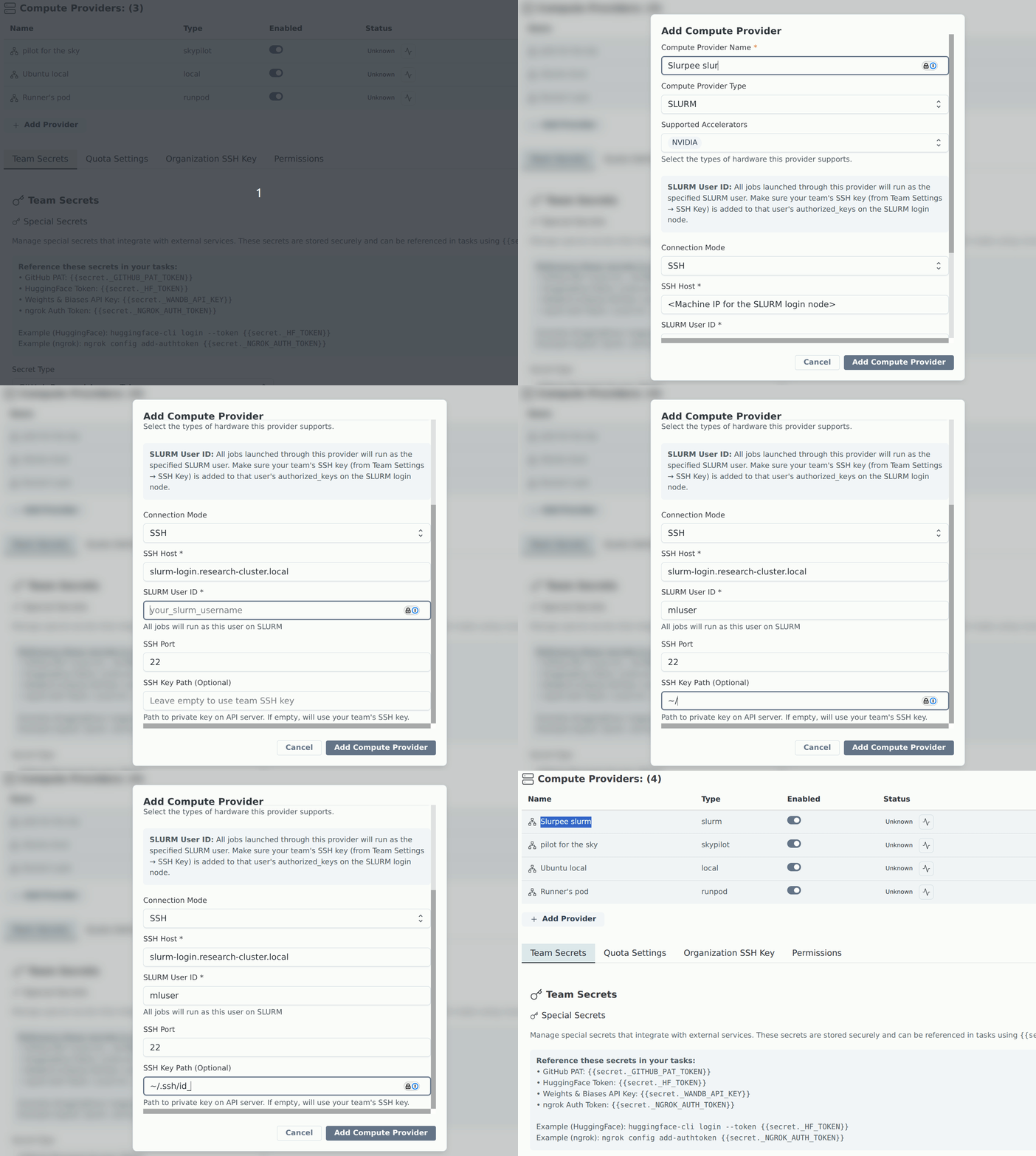
Add Slurm in Team Settings
- Open Team Settings by clicking your username in the sidebar.
- Go to Compute Providers.
- Click Add Compute Provider.
- In the modal:
- Set Type to slurm.
- Give the provider a name (e.g.
slurm-prov). - Fill in the Connection mode, SSH Host, Slurm User ID, SSH Port, and SSH Key Path (optional) fields.
- Click Add Compute Provider.
You can also add the provider via the CLI with
lab provider add.
Run health check
After the provider is listed in Team Settings:
- Find your Slurm provider in Compute Providers.
- Click the "Check provider status" icon (heartbeat) next to your Slurm provider in the status column.
- Confirm the provider reports healthy/connected.
Set up per-user credentials
After the Slurm compute provider is configured, each user needs to set up their individual credentials:
- Navigate to User Settings → Provider Settings and configure your Slurm user ID. This account will be used to submit jobs to the Slurm cluster.
- If you don't already have an SSH key pair, generate one:
ssh-keygen -t rsa -b 4096 -C "your_email@example.com"
- Add your public key (
~/.ssh/id_rsa.pub) to~/.ssh/authorized_keyson the Slurm login node for your user account. - In the Provider Settings dialog, paste the contents of your private key (
~/.ssh/id_rsa). Transformer Lab will use this key to authenticate and connect to your Slurm account.