dstack
After installing dstack and starting Transformer Lab, follow these steps to add it as a compute provider.
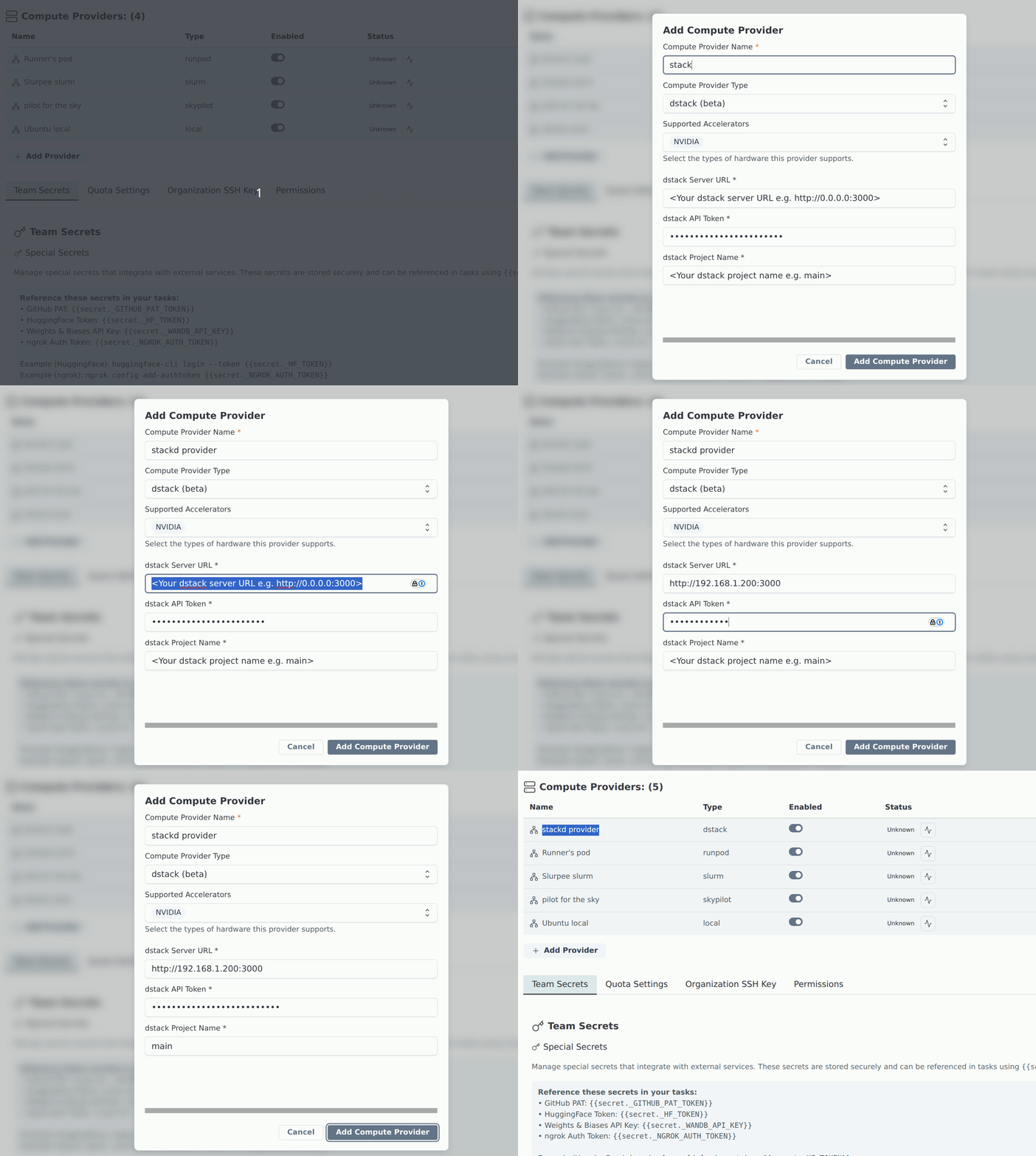
Add dstack in Team Settings
- Open Team Settings by clicking your username in the sidebar.
- Go to Compute Providers.
- Click Add Compute Provider.
- In the modal:
- Set Type to dstack (beta).
- Give the provider a name (e.g.
dstack-provider). - Fill in the Server URL, API Token, and Project Name fields.
- Click Add Compute Provider.
You can also add the provider via the CLI with
lab provider add.
Run health check
After the provider is listed in Team Settings:
- Find your dstack provider in Compute Providers.
- Click the "Check provider status" icon (heartbeat) next to your dstack provider in the status column.
- Confirm the provider reports as active.
dstack-specific behavior
- Transformer Lab maps one run/cluster to one dstack run.
- You can target a dstack fleet via
fleet_namein the yaml resources field.
Troubleshooting
- Setting up backends: To use a specific backend on dstack, see the dstack backends documentation.
- Provider check fails: Verify
server_urlreachability from the API host and confirm token validity. - Run creation fails: Check resource availability on your dstack dashboard at
http://<dstack-server-url>/offers. - First launch failure: When setting up a new dstack server, create a fleet first — otherwise the first run will fail with no hardware offers available. Go to your dstack dashboard, navigate to the Fleets tab, and create a fleet with the desired hardware configuration.