Quick Start
This quick start helps a new Teams user go from login to running their first task.
1. Open Team Settings
- Log in to Transformer Lab Teams.
- Open Team Settings from the sidebar.
- Go to Compute Providers.
- Click Add Compute Provider.
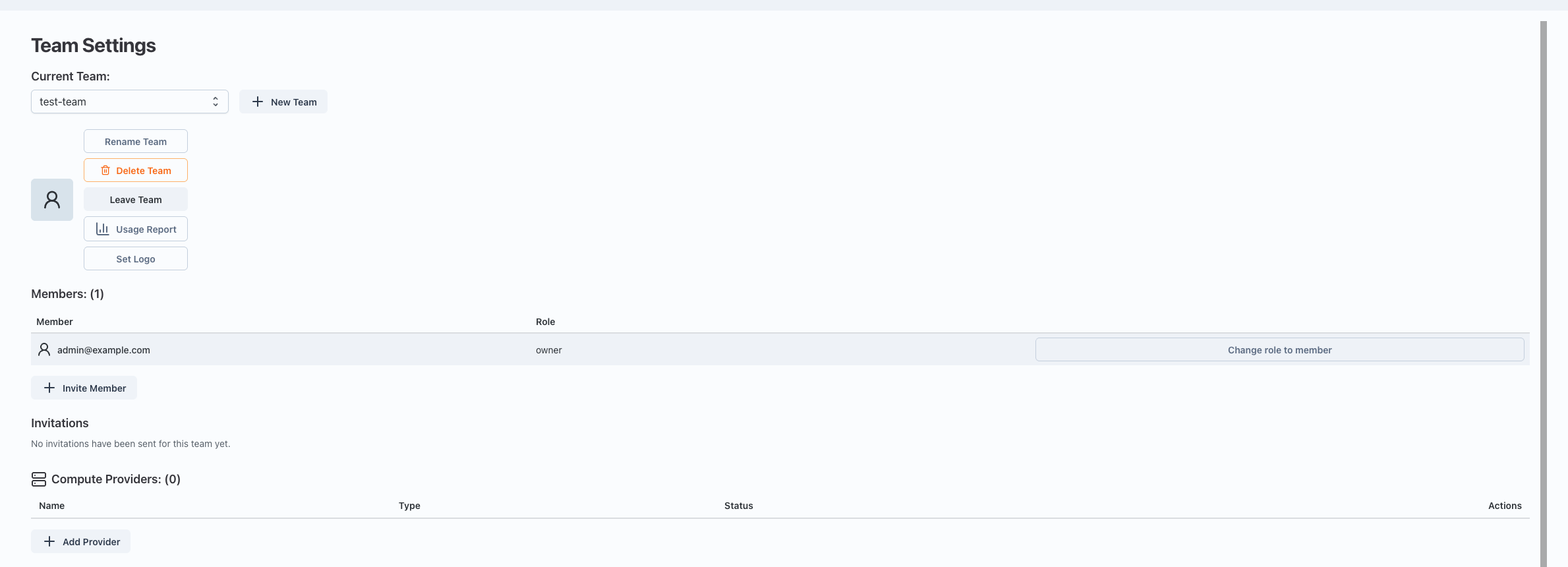
You can only add new compute providers if you're an admin. If you don't have permissions, ask your admin to add a provider for you.
2. Add a Compute Provider
When adding a provider, choose one of:
- SkyPilot
- SLURM
- Runpod
- dstack (beta)
- Local (only for running locally)
Fill in the provider configuration and save.
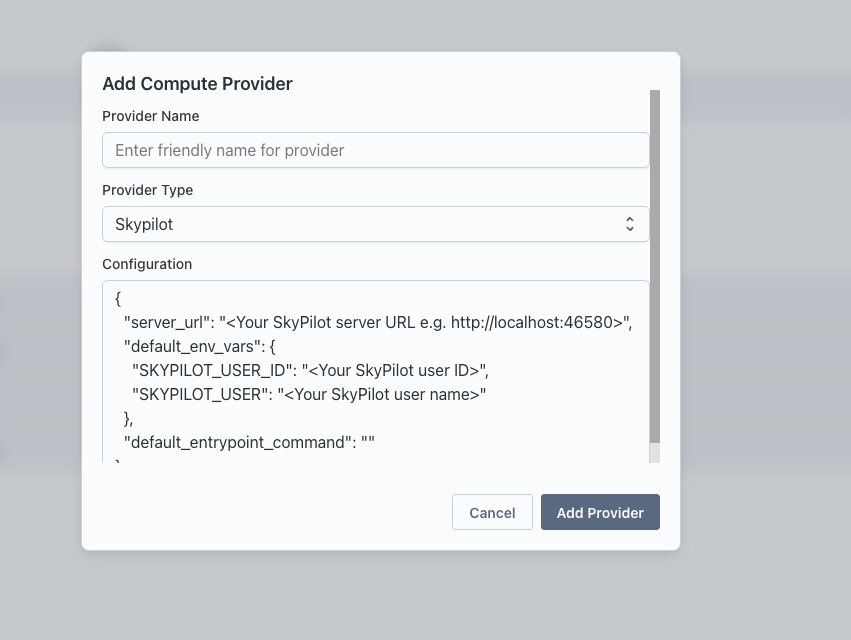
For more info on how to setup a provider, see Installation Guide.
3. Verify Provider Health
- In Compute Providers, click the Health button for your provider.
- Confirm the provider shows as connected/healthy.
- If health checks fail, fix credentials/network settings and run Health again.

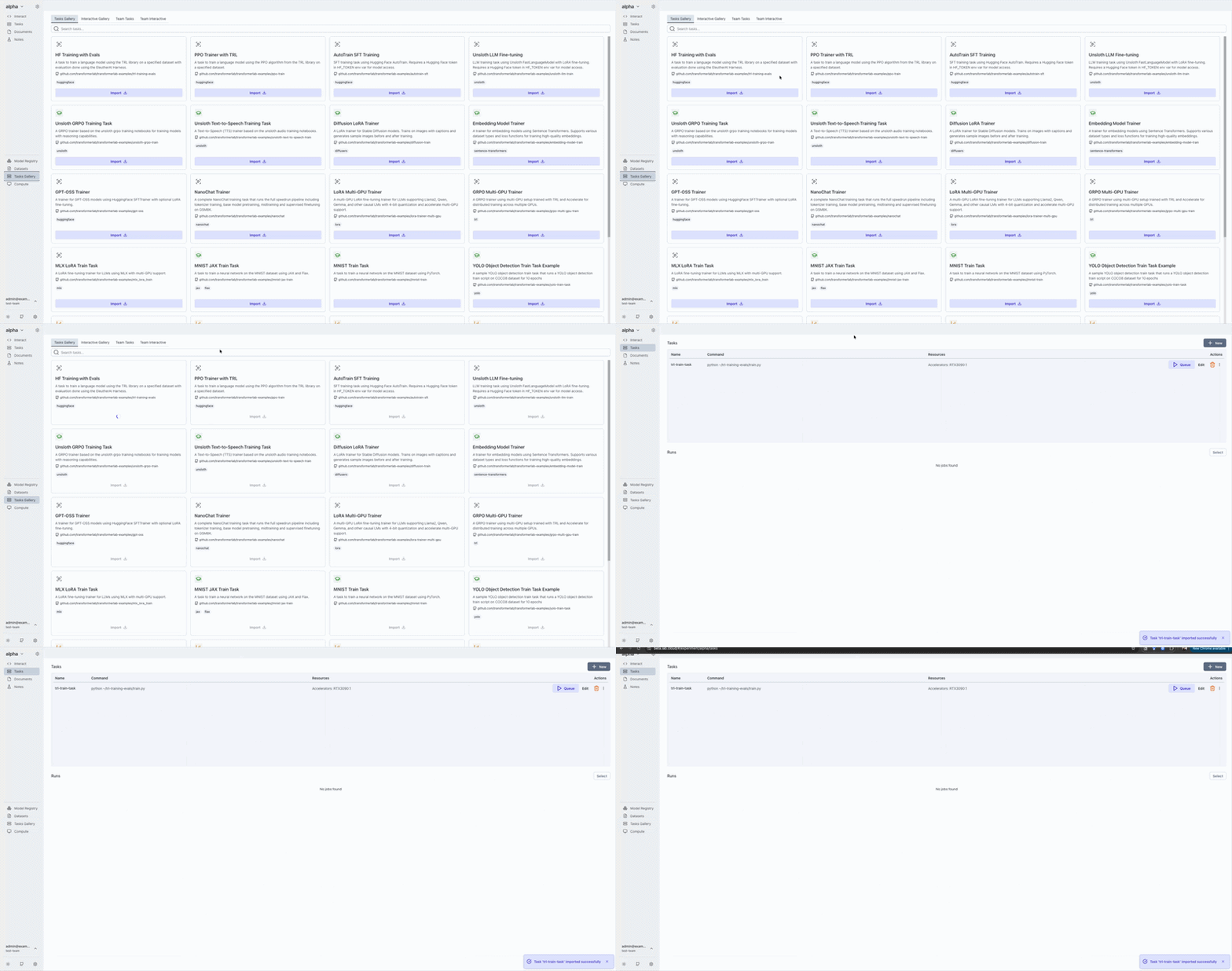
4. Import a Task from Tasks Gallery
- Open the Tasks Gallery.
- Import a task into your experiment.
5. Queue the Task
- In your experiment’s task list, click Queue on the imported task.
- Select the compute provider you configured.
- Set parameters if needed, then submit.
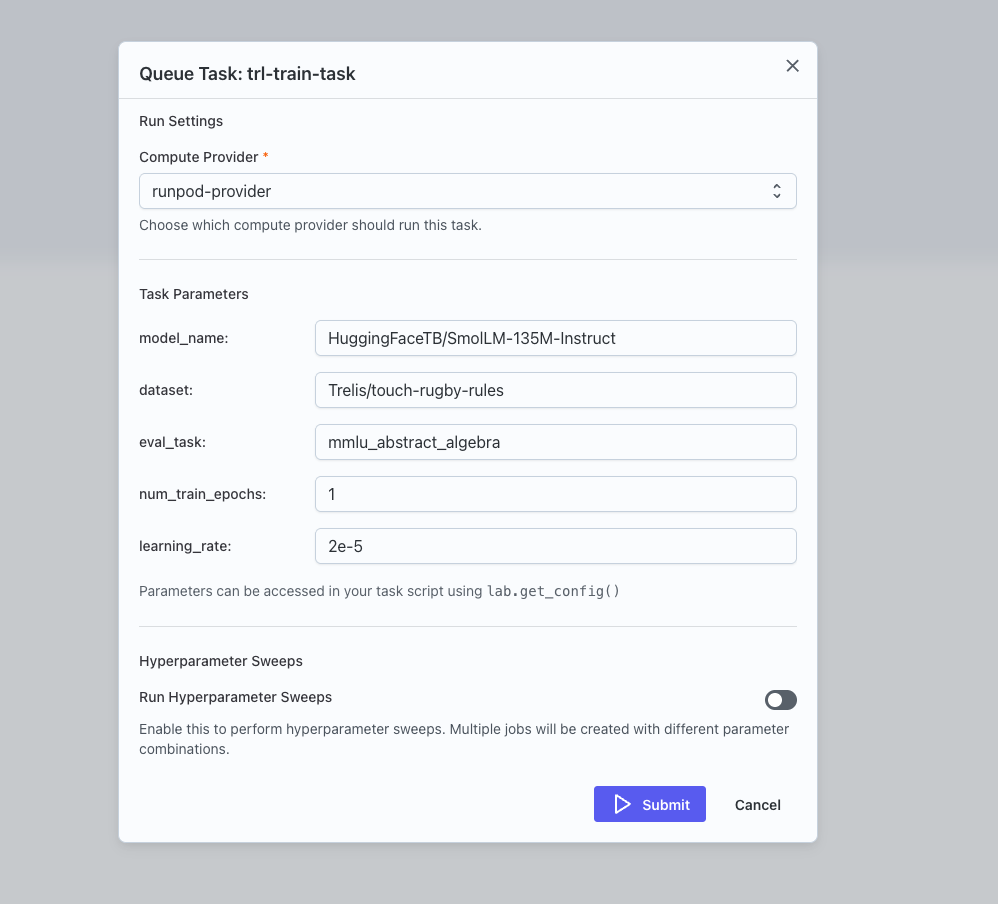
After submission, the task becomes a job and runs on your selected provider.
For deeper details, continue with Task Submission Overview.